How to Share a Link With Specific People Only

Key takeaways
- Invite-only restricts a link to specific email addresses — forwarding the link to someone not on the list won't work
- Each invited person gets an email notification and must verify with a one-time code — no account required
- Google Drive, Notion, and Loom all require viewers to create an account; ShareDuo's invite-only does not
- tiiny.host and DocSend don't require viewer accounts but have no email invite gate — only passwords
A shared link is easy to forward. Send it to one client and it ends up with their colleagues, competitors, or on Slack in a channel you didn't intend. A password helps, but a password can be forwarded too — include it in the same message as the link and you've solved nothing.
Invite-only access takes a different approach: you specify exactly which email addresses can open the link. Everyone else is blocked, even if they have the URL, because the content doesn't load until the viewer verifies their email — and only addresses on your list get a valid verification code. This guide focuses on Claude artifacts specifically — for a full overview of artifacts and all the ways to share them, see the complete guide to Claude artifacts.
How it works
From the manage page for your link, switch "Who can view this?" to Only invited users. Add email addresses in the invited users field (comma-separated), then click Send invite.
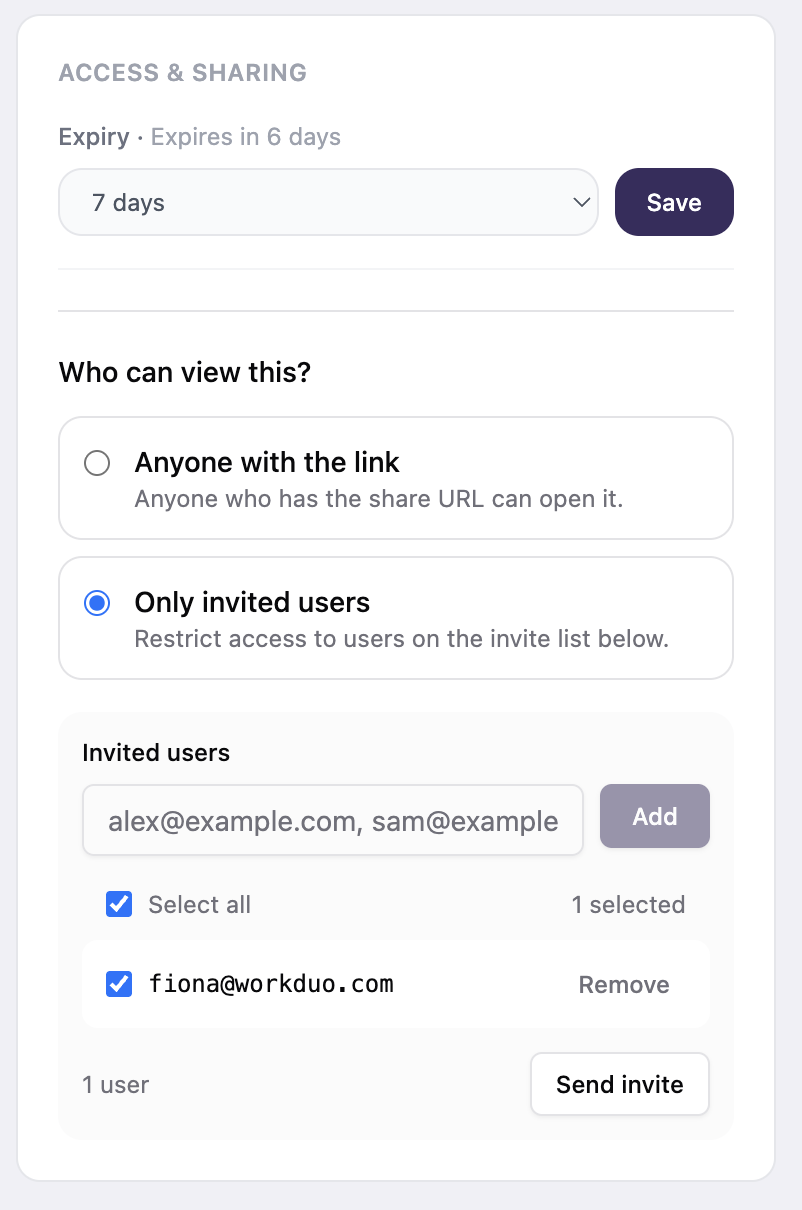
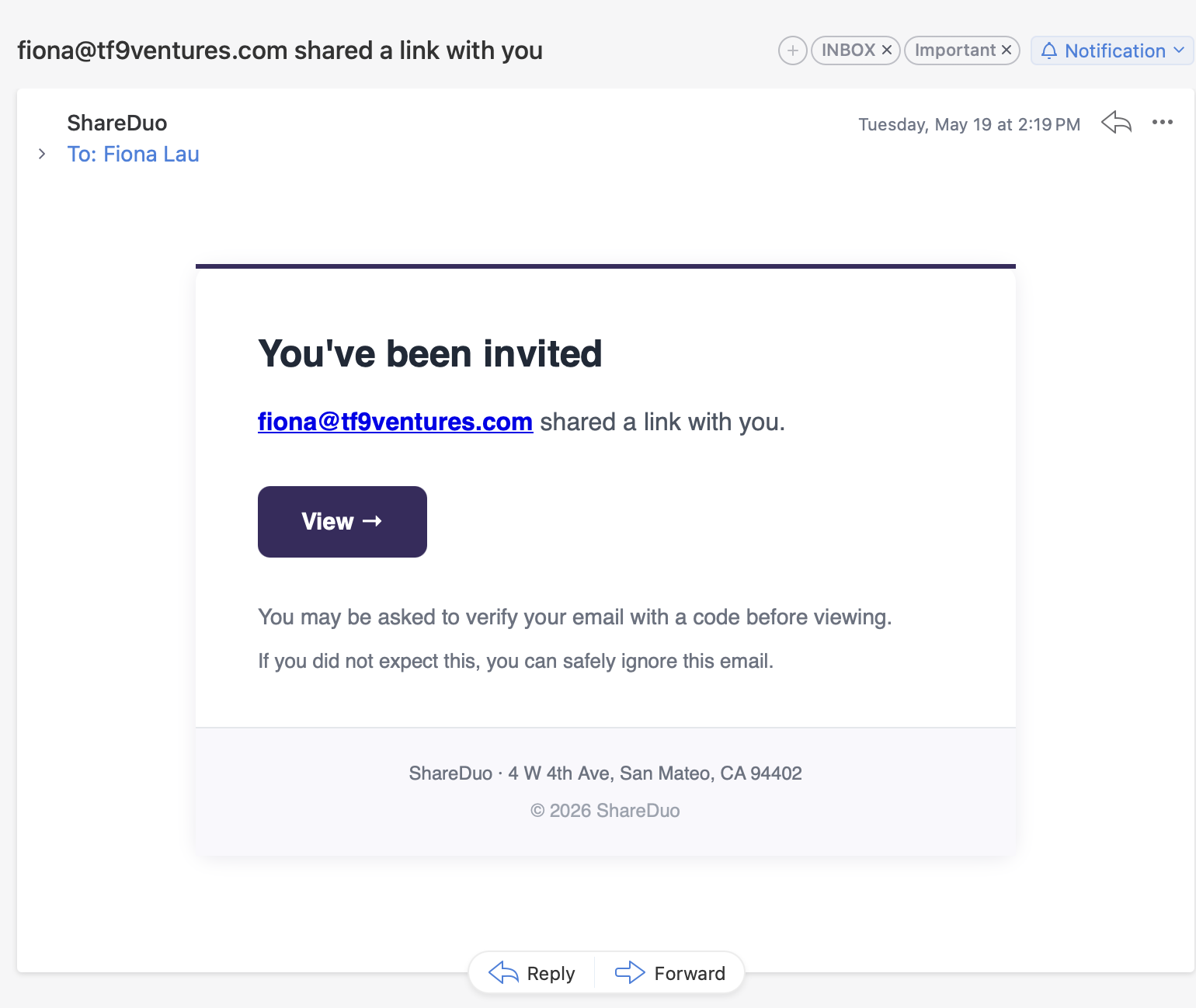
Each person on the list gets an email from ShareDuo telling them who shared the link. No ShareDuo account needed on their end — just inbox access.
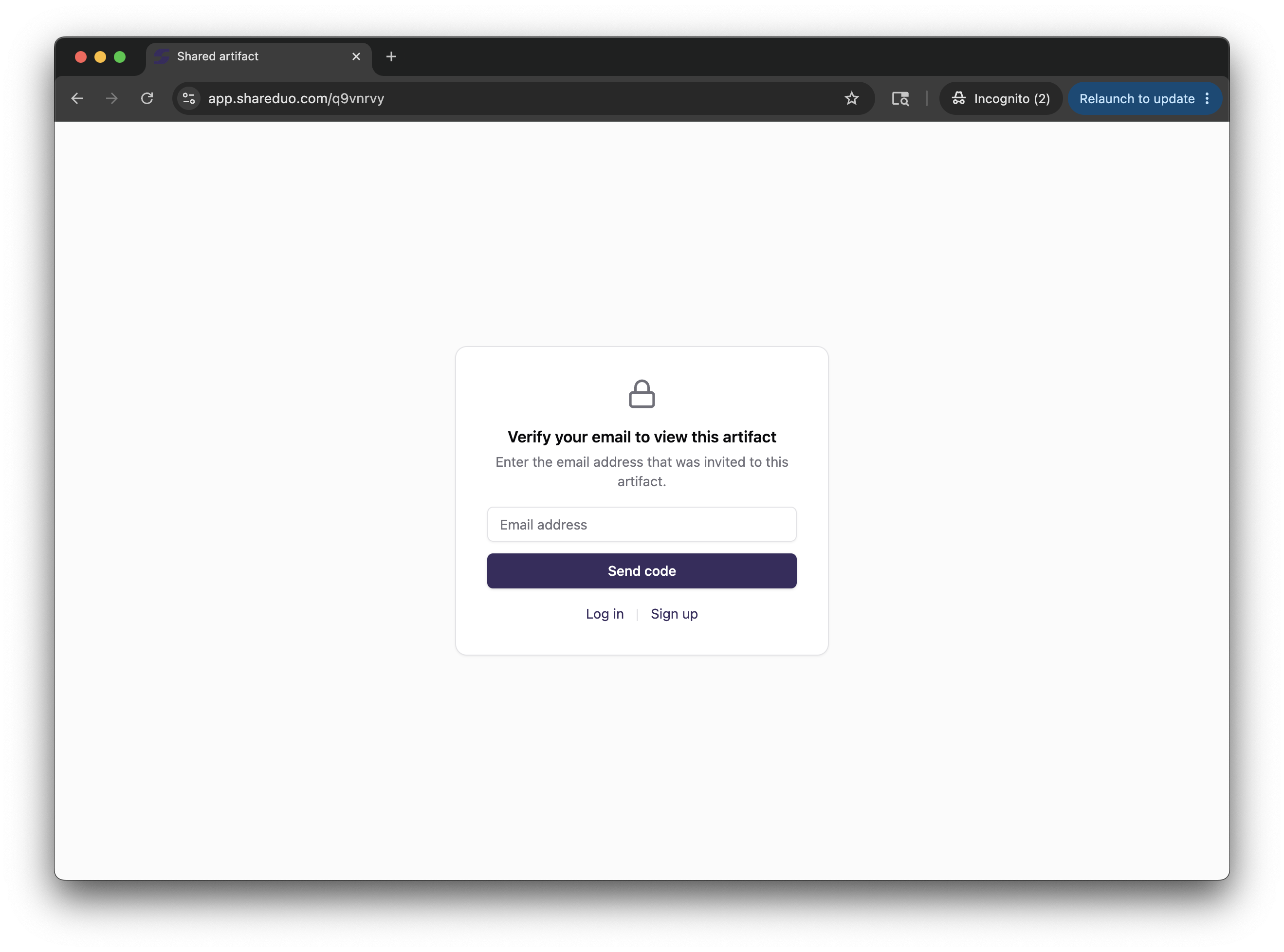
When they click the link, they see a verification prompt. They enter their email address, a one-time code arrives in their inbox, they enter it, and the content loads. If someone tries the same thing with an address that isn't on your list, no code is ever sent — they can't get in.
You can remove anyone from the list at any time from the manage page. Access is revoked immediately on removal.
Invite-only vs a password
A password is simpler for the viewer — just type it, no email step. It's fine when you're sharing with a small group you trust not to forward it. The weakness: once you've sent someone the password, you have no way to take it back without changing it for everyone.
Invite-only is the right choice when you need to control the exact list of who has access — when forwarding is a real concern, when you want to be able to revoke one person without affecting the others, or when you want a clear record of who was invited. You can combine both: enable invite-only and a password on the same link for a two-factor gate.
For a deeper comparison, see how to password-protect a Claude artifact.
How it compares to other tools
When you need to restrict a link to specific people, a few tools come up naturally. Here's an honest look at each.
Google Drive
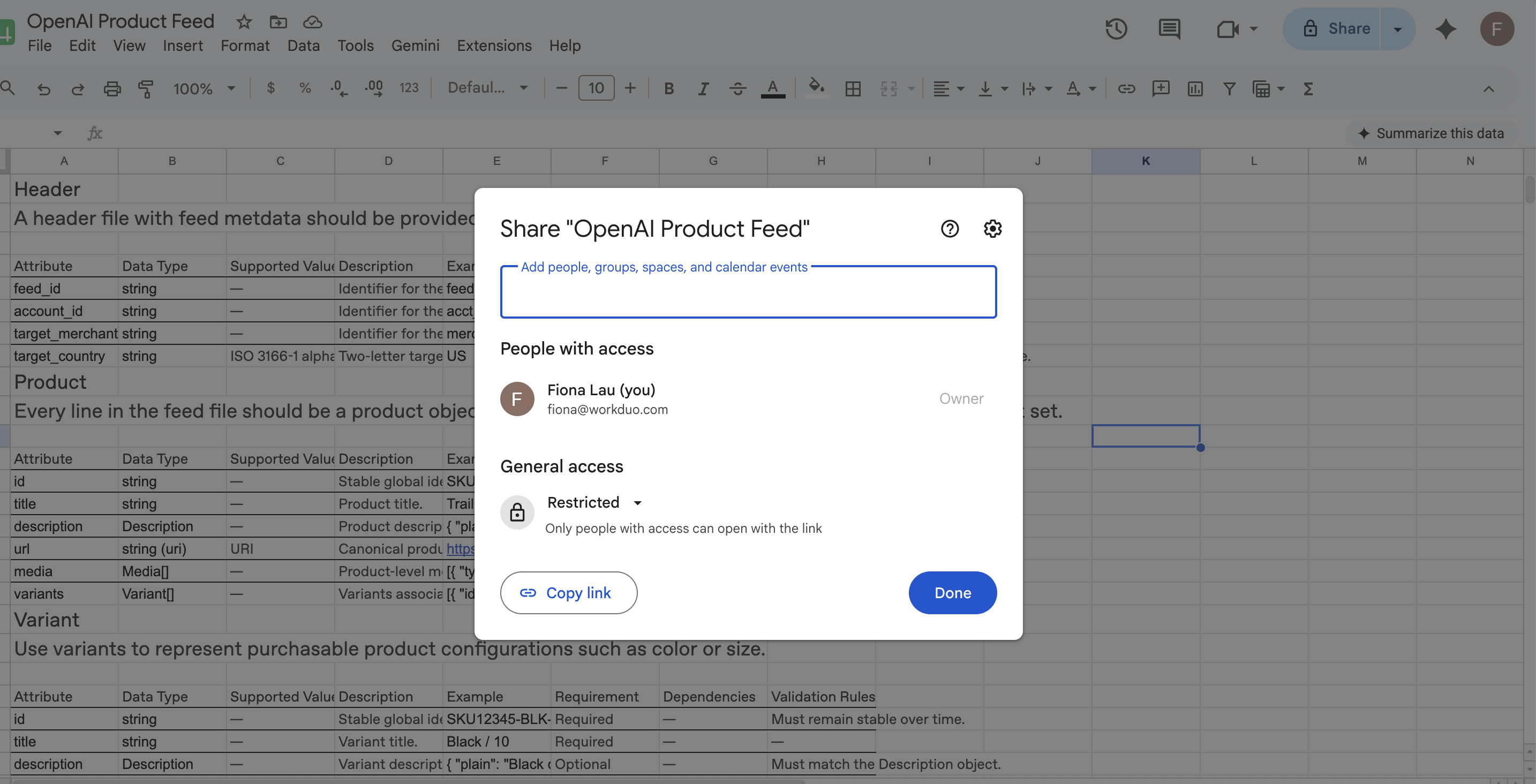
The most common first instinct. Share a file, switch from "Anyone with the link" to "Restricted", and invite by email. It works well within teams where everyone already has a Google account — but that's the catch. Recipients who don't have a Google account (or aren't signed in) hit an access wall and have to create one to proceed.
For HTML specifically, Drive doesn't run the file as a live webpage. It either previews the source code or prompts a download. If your goal is to share a working interactive prototype, Drive gets you stuck before you start.
Notion
Notion lets you share a page with specific people by email, and they receive an invite link. What the docs make clear: guests must create a Notion account to access the page. There's no way around this. If you're sending a client mockup to someone who doesn't use Notion, they have to sign up before they see anything. Free workspaces cap you at 5 guests.
Notion is also for Notion content — pages, databases. It's not a way to host arbitrary HTML as a running webpage.
Loom
Loom solved the "share with specific people" problem for screen recordings, so it's worth including for context. The specific-people access control in Loom requires viewers to be logged into a Loom account — same friction as Google and Notion, just for a different platform. It's also video-only; it has no concept of hosting interactive HTML.
tiiny.host
The closest direct competitor for HTML hosting. Drag-and-drop upload, instant link, clean interface. Its Access Settings offer three modes: public, password protected, and "Capture Emails". That third option sounds like access control but it's actually lead generation — it prompts visitors to enter their email address before viewing, but it doesn't check that address against any list. Anyone can type any email and get through.
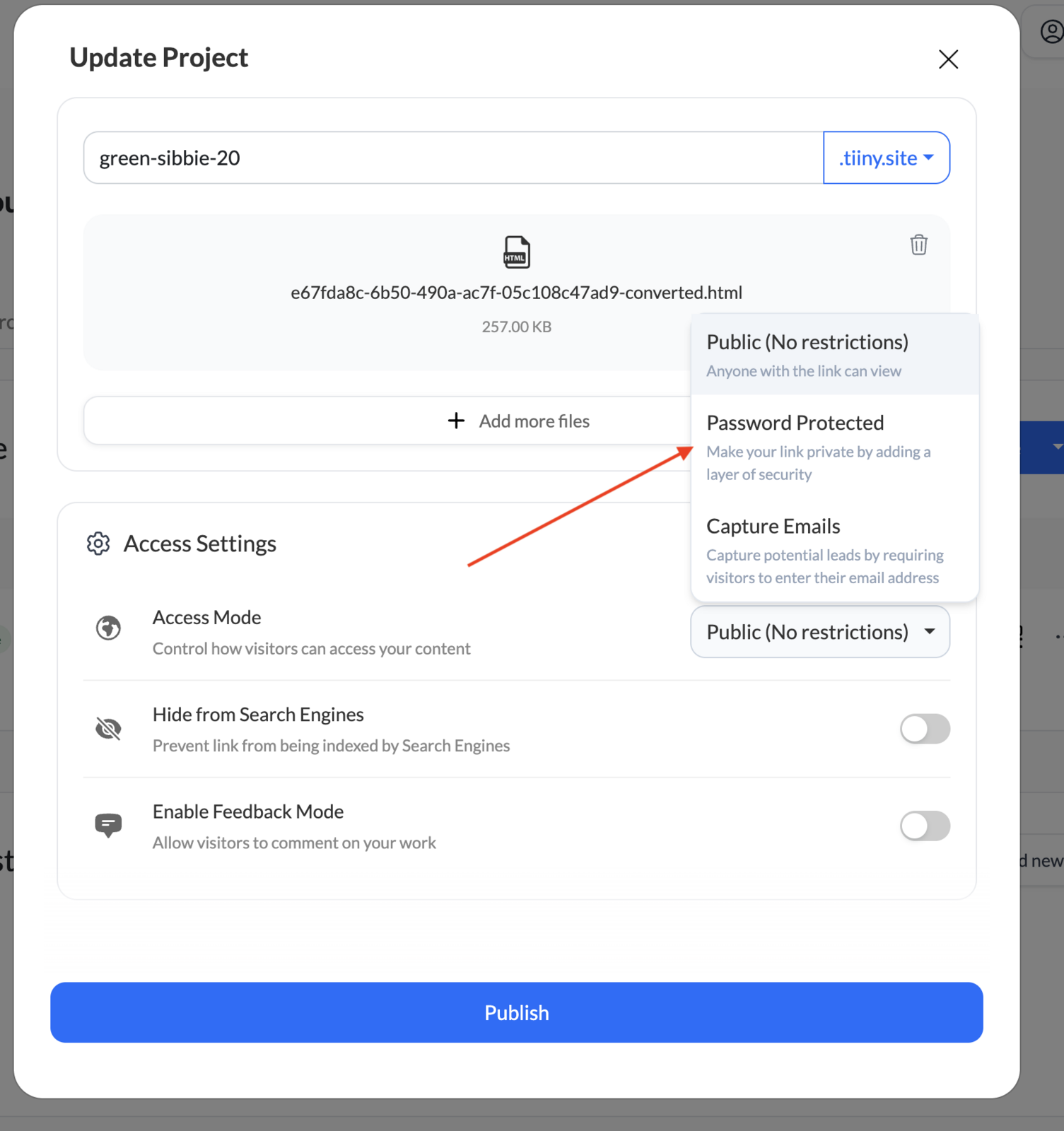
Password protection is on paid plans (Solo: $13/month annual). If a password is enough for your use case, tiiny.host is a solid option. If you need to restrict to specific people, it can't do that.
DocSend
The established tool for confidential document sharing. Its standout feature is per-page read analytics — you can see that an investor spent 4 minutes on slide 6 and skipped slide 9, which is genuinely useful in sales and fundraising. It also has NDA acceptance before viewing and dynamic watermarking that stamps viewer info onto each page. No free plan since 2025; Personal plan starts at $10/user/month.
DocSend is built for PDFs and presentations, not interactive HTML. If your deliverable is a pitch deck and you need engagement data, DocSend is the right tool. If your content is a live prototype or app, it can't serve that.
| Google Drive | Notion | Loom | tiiny.host | DocSend | ShareDuo | |
|---|---|---|---|---|---|---|
| Content type | Files, docs | Notion pages | Video | Static HTML | PDFs, decks | Interactive HTML |
| Restrict to specific emails | Yes | Yes | Yes | No | Yes | Yes (Plus) |
| Viewer needs an account | Yes (Google) | Yes (Notion) | Yes (Loom) | No | No | No |
| Password protection | No | No | Yes (Business+) | Yes (paid) | Yes | Yes (free) |
| Link expiry | Yes | No | No | No | Yes | Yes (free) |
| Per-page / engagement analytics | No | No | Yes (view time) | Basic | Yes (detailed) | View count |
| Free plan | Yes | Yes (5 guests) | Yes (limited) | No | No | Yes |
| Starting price (paid) | Free / Workspace | Free / $10/month | Free / $12.50/month | $13/month | $10/user/month | $4.99/month |
The pattern across Google Drive, Notion, and Loom is the same: restrict to specific people, but force those people to create an account on your platform first. That's fine internally — your team already has Google accounts. It's friction when you're sharing outward with clients, collaborators, or reviewers who aren't on your stack.
tiiny.host and DocSend avoid that by not requiring viewer accounts, but neither handles interactive HTML. ShareDuo's invite-only sits in the gap: email-verified access with no account creation required, for content that actually runs in a browser.
When invite-only makes sense
The clearest cases: client work you don't want forwarded to a competitor, investor previews before a round closes, internal tools meant for one team, beta access to something you're not ready to open publicly. Anything where "people I didn't invite are seeing this" would be a real problem — not just annoying, but consequential.
If the stakes are lower and you're mostly protecting against accidental discovery rather than deliberate forwarding, a password or even just a short expiry on the link is usually enough.
Ready to share your Claude artifact?
Free, no signup. Anyone can view the link — no Claude account needed.
Get my shareable link →